Showing posts with label javascript. Show all posts

Tuesday, 31 October 2023

CALLING A MICROSOFT FLOW FROM DYNAMICS 365 AND POWERAPPS USING JAVASCRIPT


CALLING A MICROSOFT FLOW FROM DYNAMICS 365 AND POWERAPPS USING JAVASCRIPT


In our previous post, we send a POST request to a Microsoft Flow. We showed how to do this using the Postman application. Let’s now run this from Dynamics 365 / PowerApps.

On our Account page, we have a field called Partner Ranking. We see the ranking for the current account is set to 7:
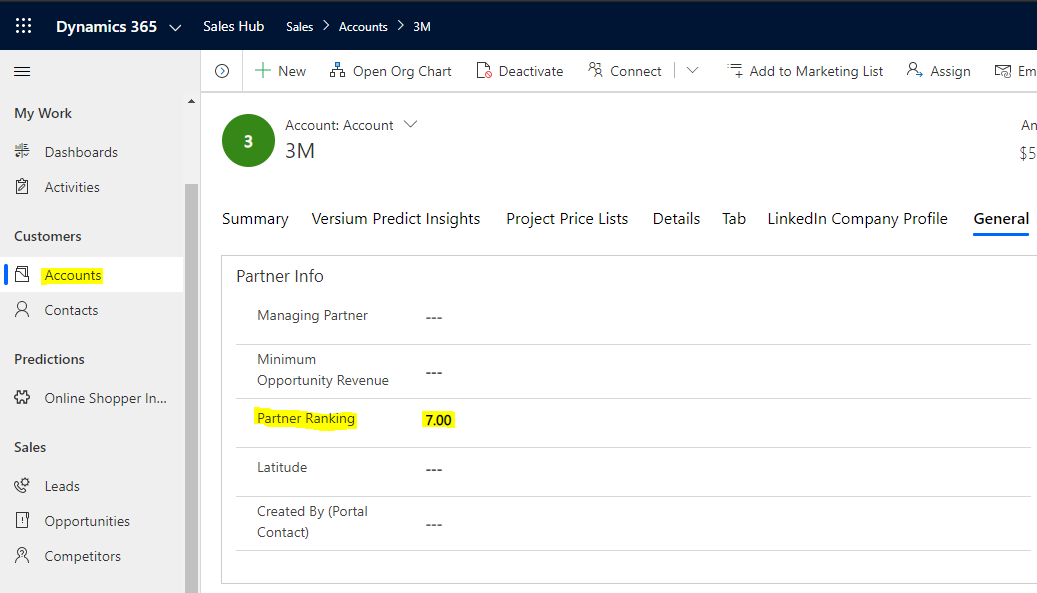
Now let’s say we want to post a message to a Microsoft Teams channel when this number drops below 5 for an account. We want to do this using JavaScript on saving of the Account record.

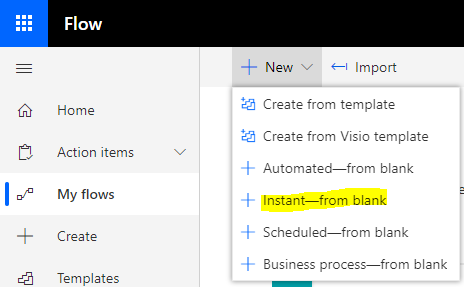
First, let’s create a new Flow. Go to https://flow.microsoft.com: and select New->Instant – from blank:
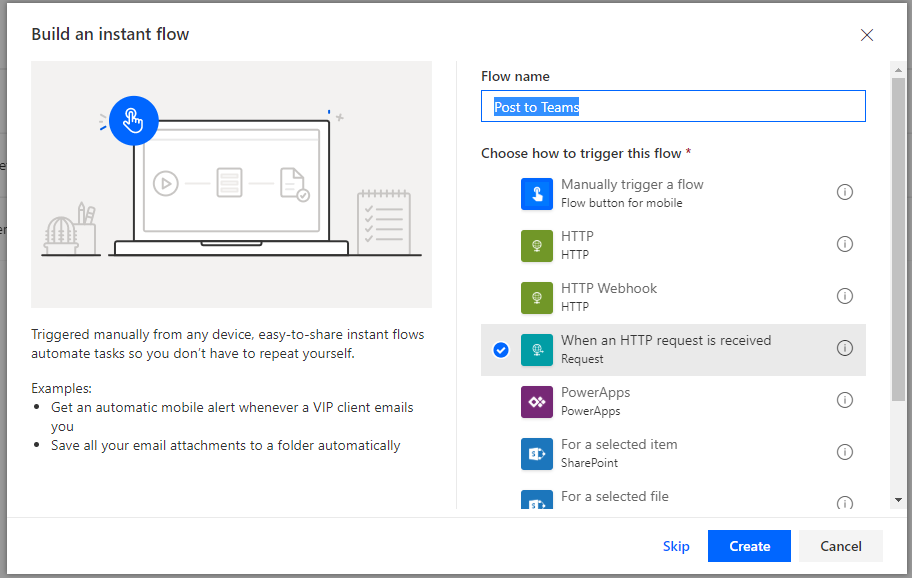
Let’s call it “Post to Teams” and select When an HTTP request is received:
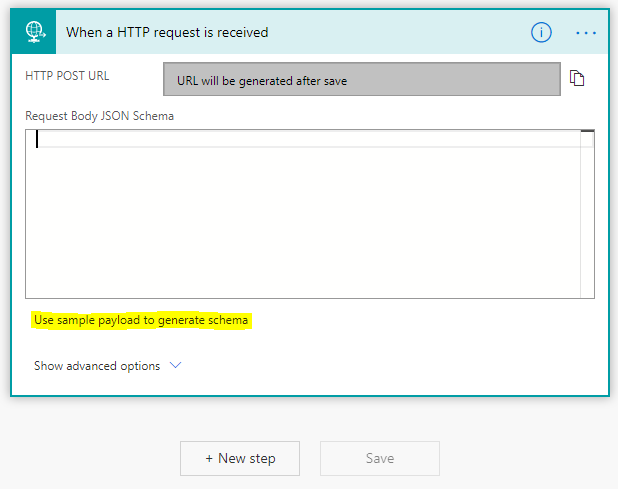
You will see below. Click on Use sample payload to generate schema:
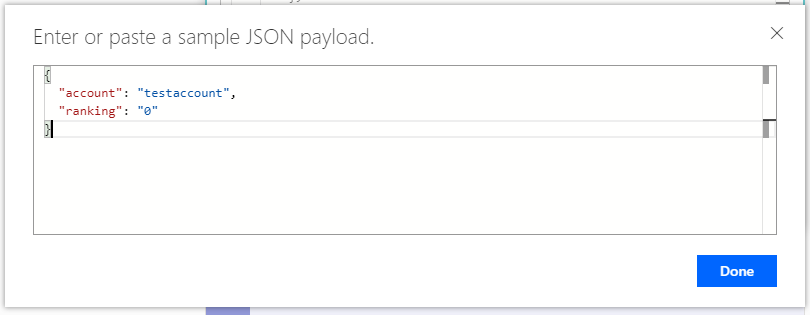
We will send account and ranking to our teams chat message, so let’s create a JSON sample with these 2 fields:

{
  "account": "testaccount",
  "ranking": "0"
}

Paste this into the window and click Done:
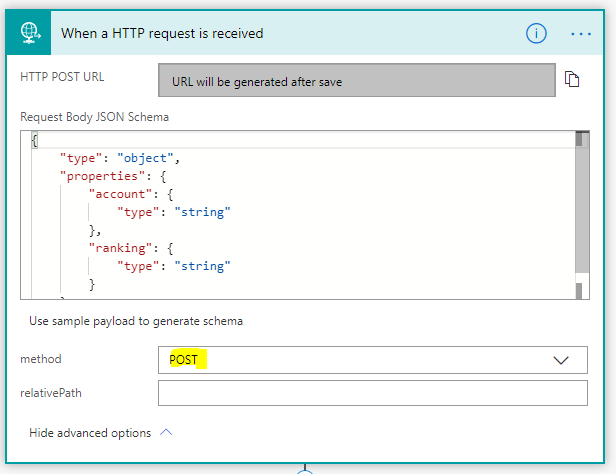
We see the schema has been generated from the sample JSON payload: Set the method to POST:
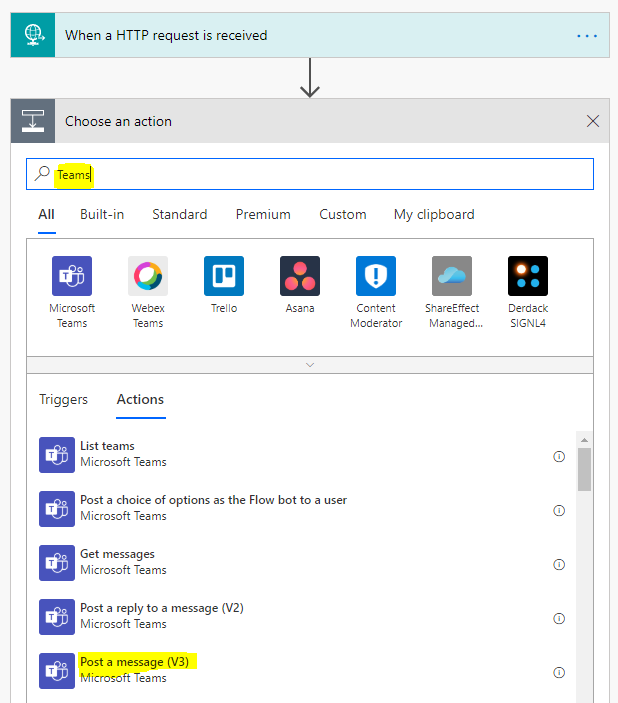
Now let’s add an action, search for Teams then Post a message:
 

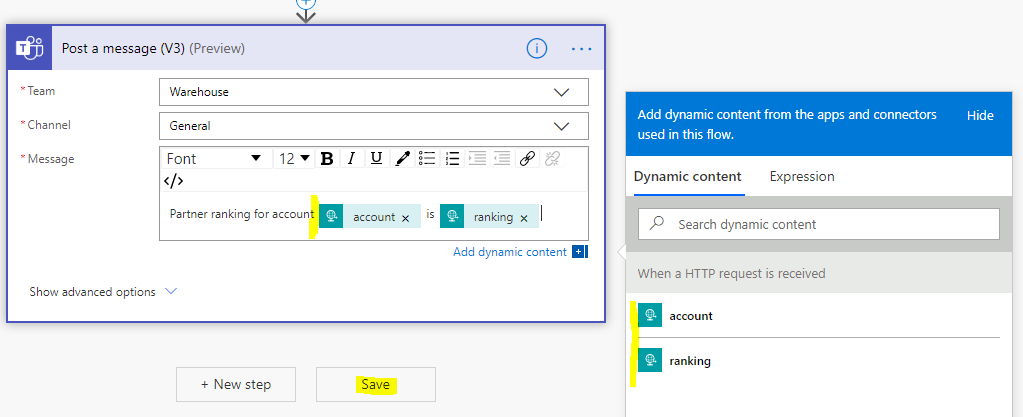
Select the Team, Channel and Message. We will use Dynamic content – account and ranking – in the body of our message. Click Save:
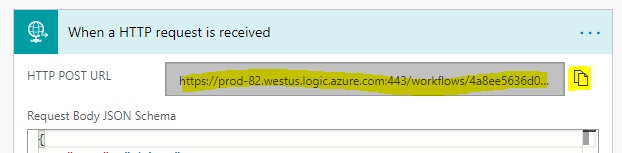
This generates a URL for our HTTP POST to hit. Copy the URL:
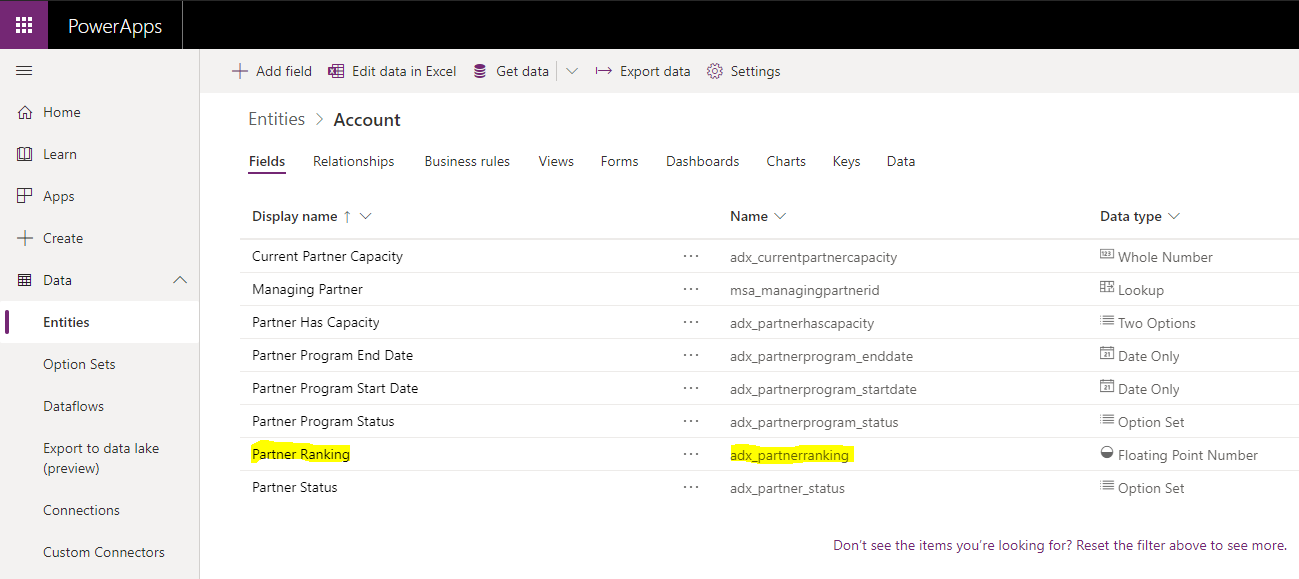
Now let’s customize Dynamics 365 / PowerApps. Go to Customizations for the Account entity and find the field name. In https://make.powerapps.com/ we see the field is adx_partnerranking and the account name is name:
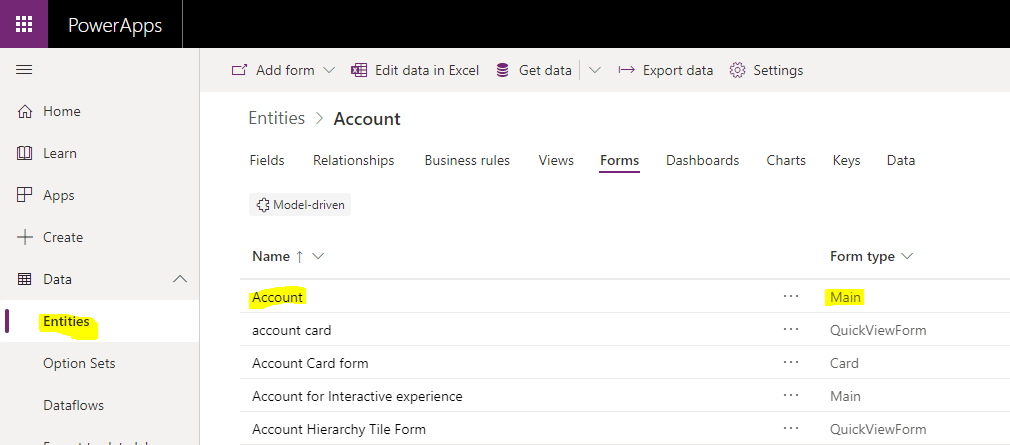
Now let’s go into the main Account form:
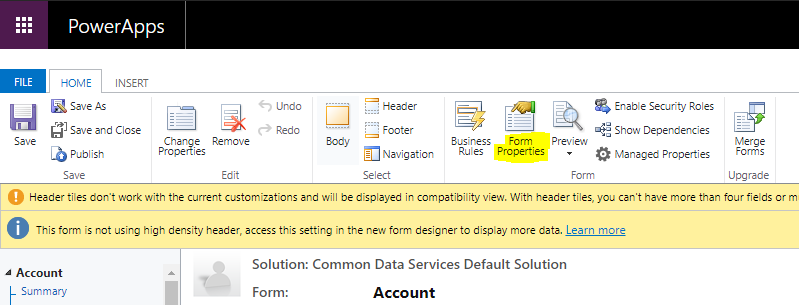
Switch to Classic and go to Form Properties:
Let’s Add a new script:
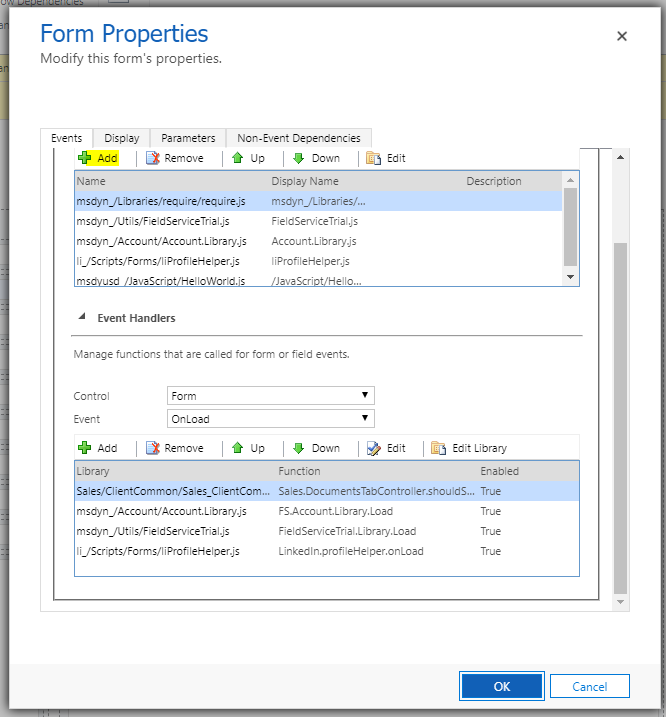
Click New:
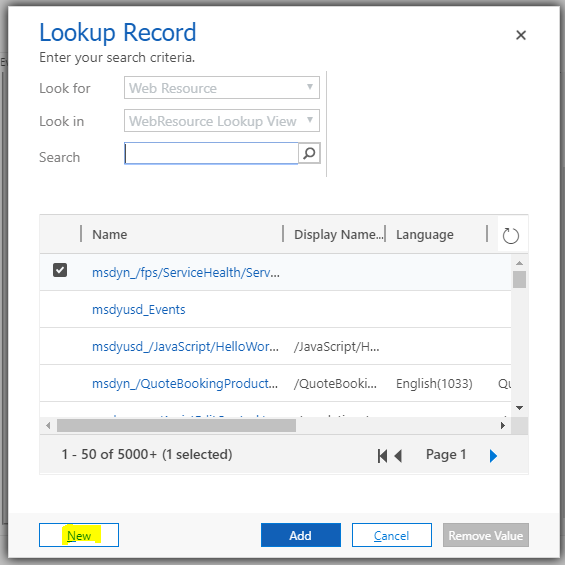
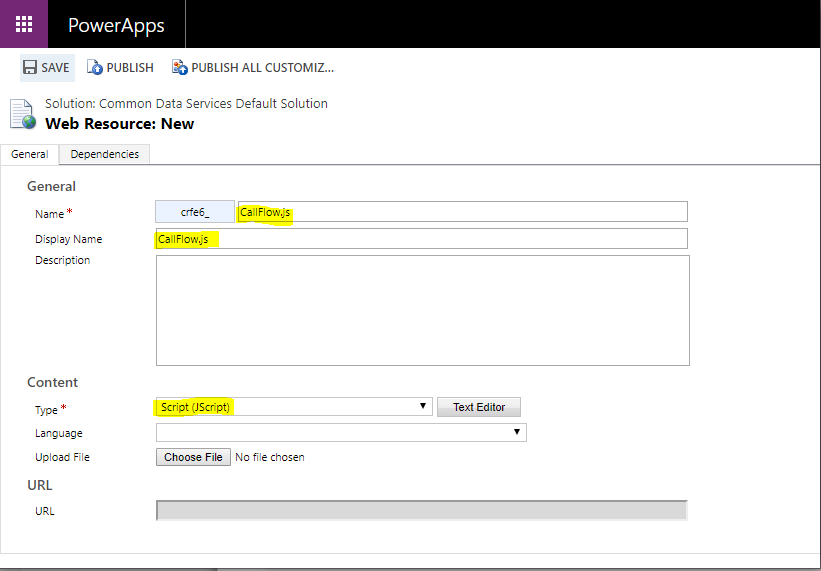
We will call it CallFlow.js and set it to JScript:
Now the JavaScript code. We will get the ranking and account values from the form using getAttribute, and paste the url from our flow copied above into the url variable. The code posts to the address the JSON data we have created if the ranking is below 5:

function PostFlow(executionContext) {

var formContext = executionContext.getFormContext();

var ranking = formContext.getAttribute("adx_partnerranking").getValue();
var account = formContext.getAttribute("name").getValue();

if (ranking <= 5) {
  var req = new XMLHttpRequest();
  var url = "<paste url from flow>";
  req.open("POST", url, true);
  req.setRequestHeader('Content-Type', 'application/json');
  req.send(JSON.stringify({
    "account": account,
    "ranking": ranking
  }));
 }
}

Click Save and click Add:
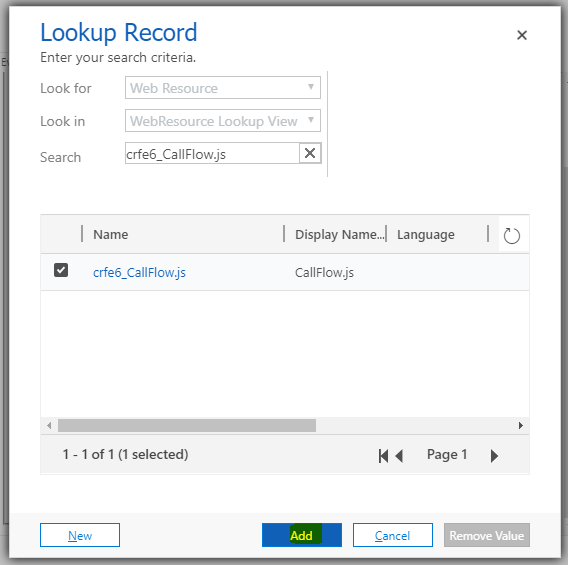
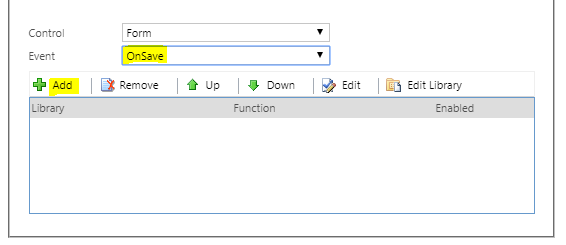
In Form OnSave click Add:
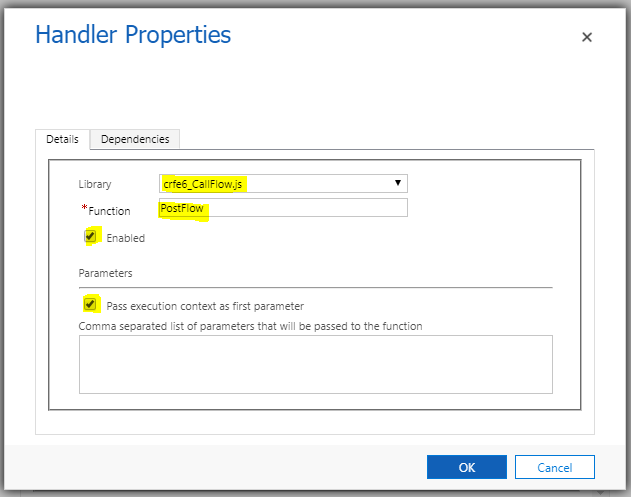
Select the JS library and enter the PostFlow function we created:
Save and publish the form:

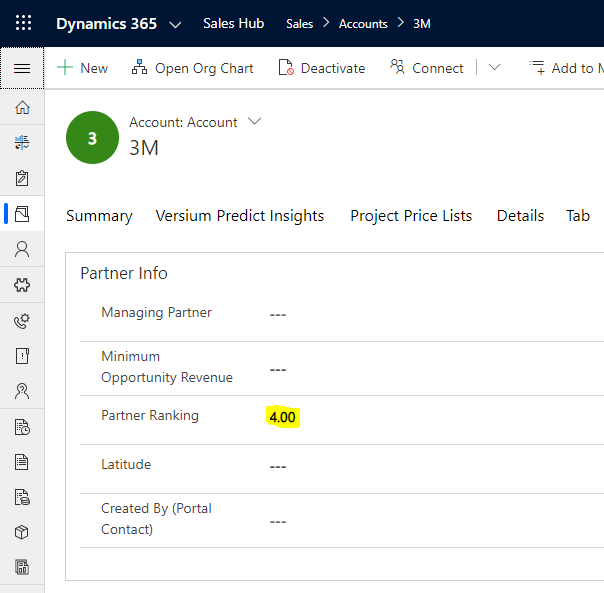
We’re now ready to run our test. Go to the Account form and change the Partner Ranking field to 4:
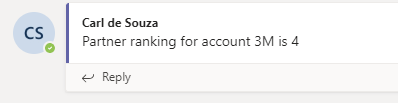
On saving the record, we see the Flow is run through JavaScript and a teams chat message is created with “Partner ranking for account 3M is 4”:
That’s it, you can now run Microsoft Flows from Dynamics 365 and PowerApps using JavaScript.

Tuesday, 13 June 2023

Disable all fields using JavaScript - Dynamics 365 code

      disableformFields(executionContext);


function disableformFields(executionContext) {

    var formContext = executionContext.getFormContext();

    var formControls = formContext.ui.controls;

    formControls.forEach(control => {

        if (control.getName() != "" && control.getName() != null) {

            control.setDisabled(true);

        }

    });

Tuesday, 25 April 2023

Change the field label on the form dynamics 365

 If you just want to change how the field is labeled on the form, you can do:

Xrm.Page.getControl("ControlName").setLabel("New Label");


var formContext = executionContext.getFormContext();


formContext.getControl("new_name").setLabel("Name");

Tuesday, 18 April 2023

How to validate end date to be greater than start date - Dynamics 365


How to validate end date to be greater than start date


// Validating Start and End Date

function ValidateMaintenanceEndDate(executionContext)

{

 var formContext = executionContext.getFormContext();

 var startDateField = formContext.getAttribute("new_maintenancestart");

 var endDateField = formContext.getAttribute("new_maintenanceend");

 var endDateFieldControl = formContext.getControl("new_maintenanceend");

 var startDate = startDateField.getValue();

 var endDate = endDateField.getValue();


 if (startDate != null && endDate != null)

 {

  startDate = new Date(startDate.toISOString().substr(0, 10));

  endDate = new Date(endDate.toISOString().substr(0, 10));


  endDateFieldControl.clearNotification("ErrEndDate");


  if (startDate >= endDate)

  {

   endDateFieldControl.setNotification("cannot be before or equal to Maintenance Start.""ErrEndDate");

  }

  else

  {

   endDateFieldControl.clearNotification("ErrEndDate");

  }

 }

}


Wednesday, 18 January 2023

D365 CE: Get Logged in User’s Security Roles using JavaScript


D365 CE: Get Logged in User’s Security Roles using JavaScript


Many times we come across requirements such as show/hide ribbon buttons based on logged in user’s security role.

Earlier, we used to get security roles of logged in user at client side using Xrm.Utility.getGlobalContext().userSettings.securityRoles which used to return array of GUID value of each security role.

Now that it’s deprecated, we can use Xrm.Utility.getGlobalContext().userSettings.roles which returns collection of objects with GUID and name of each security role that is assigned to the user directly or through the teams.

Below is the script which checks if the user has certain security roles based on names and hides the ribbon button if the user doesn’t have any of those security roles:

1
2
3
4
5
6
7
8
9
10
11
12
13
14
SAB.ShowHideReopenButton = function () {
    var roles = Xrm.Utility.getGlobalContext().userSettings.roles;
 
    if (roles === null) return false;
 
    var hasRole = false;
    roles.forEach(function (item) {
        if (item.name.toLowerCase() === "cs manager" || item.name.toLowerCase() === "cs administrator") {
            hasRole = true;
        }
    });
 
    return hasRole;
}

Hope it helps !!

Friday, 9 December 2022

Hide Tab using JavaScript - Using form context Dynamics 365


Hide Tab using JavaScript


Introduction :

In this blog we will see how to hide tab using JavaScript.

Dynamics 365 
Home 
Recent 
Pinned 
My Work 
Dashboards 
Activities 
Customers 
Accounts 
R Contacts 
Sales 
Leads 
Opportunities 
R Competitors 
Sales 
Sales Hub 
+ New 
Sales > Opportunities > For template 
Copy CD Refresh 
Close as Won 
Qualify (5 Hrs) 
uotes Related 
Close as Lost 
(S Close all quotes 
o 
Develop 
Billing Method 
No data available. 
Recalculate Opportunity 
Est. Close Date 
o 
Propose 
Convert to Work Order 
For template 
Opportunity • Project Information v 
Opportunity Sales Process 
Active for 5 hours 
In Progress 
Est. Revenue 
Summa 
Opportunity Lines 
CRM Admin 
o 
Close 
Refresh 
Project-based Lines 
Write-In Product 
Product-based Lines 
Open 
+ Add New Opportunity... 
Budget Amount 
S save

Implementation :

Step 1 : Javascript for hiding tab :

var hideTab ={
hideTabs: function (executionContext) 
{
       
          var formContext = executionContext.getFormContext();
            formContext.ui.tabs.get("OpportunityLinesTab").setVisible(false);
    },
};

 Step 2 : Upload script on load of form -> ok -> Save and Publish .

Handler Properties 
Details 
De pendencies 
Library 
Function 
Enabled 
Paramet ers 
new HideTab 
BideTab.hideTabs 
•J Pass execution context as first parameter 
Comma separated list of parameters that be passed to the function

Result :

Dynamics 365 
Home 
Recent 
Pinned 
My Work 
Dashboards 
Activities 
Customers 
Accounts 
R Contacts 
Sales 
Leads 
Opportunities 
Competitors 
Sales 
Sales Hub 
+ New 
Sales > Opportunities > For template 
Copy CD Refresh Close as Won 
Close as Lost 
(S Close all quotes 
o 
Develop 
Recalculate Opportunity 
Est. Close Date 
o 
Propose 
Convert to Work Order 
In Progress CRM Admin 
For template 
Opportunity • Project Information v 
Opportunity Sales Process 
Active for 5 hours 
Summary Quotes Related 
Est. Revenue 
Status 
(7) 
Qualify (5 Hrs) 
Owner 
o 
Close 
Topic 
Contact 
Account 
Account Manager 
Contracting Unit 
Purchase Timeframe 
Currency 
For template 
test account 2019 
CRM Admin 
DataFronts 
US Dollar 
Timeline 
Enter a notem 
Auto-post on wall... 
1248 PM 
Opportunity: Created by CRM Admin... 
STAKEHOLDERS 
Name 
No data available. 
SALES TEAM 
Name 
Rc R 
Page I

Hope this helps

Thursday, 24 November 2022

Dynamics 365 – Make the Form Readonly with Javascript


Dynamics 365 – Make the Form Readonly with Javascript

To make the form read-only in Dynamics 365 you have 2 options. Either changing record status to Inactive or making all form fields disabled with Javascript.

Changing record status to Inactive might not suitable for some business cases. For example you might want to make your form read-only based on an attribute. If you change your status to inactive, it might trigger record cascading, which will cause to setting related child record status to also inactive. In addition your record won’t show up under Active records view.

If you think this is not the best way for you, then you can use Javascript. The below piece of code sets all form fields to read-only dynamically. It will loop through your form controls(tabs, sections, feilds) one by one and disable them.

disableForm: function (executionContext) {
let formContext = executionContext.getFormContext();
let formControls = formContext.ui.controls;
formControls.forEach(control => {
if (control.getName() != "" && control.getName() != null) {
control.setDisabled(true);
}
});
}
view rawFormReadOnly.js hosted with ❤ by GitHub

Identify all the cloudflows on a particular entity along with its messages

  The easiest way to identify the flows that trigger on a particular entity with its messages is to run a SQL query using the sql4cds tool i...